![Group 10709 (4).png]](https://kb-x9t3q.besignal.com/hs-fs/hubfs/Group%2010709%20(4).png?width=60&height=60&name=Group%2010709%20(4).png)
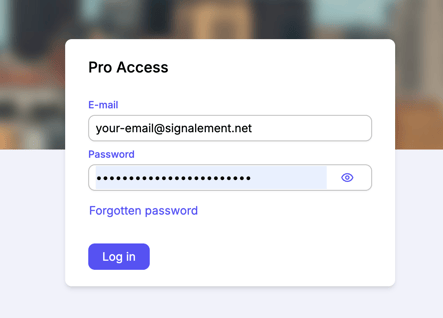
If you are a case manager or administrator, use the "Pro Access" button on the homepage to log-in to your secure management space.
What is the "Pro Access"?
Pro Access is a secure space for users with an account on the platform. It gives you access to the tools you need to manage cases and/or administer the platform, depending on your permissions.
To get there, go to your platform homepage and click the "Pro Access" button in the top right corner of the screen.
First login: activating your account
On your first login, you cannot access Pro Access directly. You first need to activate your account using an activation link sent to you by email.
This link lets you set your password, which must meet the following requirements:
- At least 14 characters
- At least 1 number
- At least 1 uppercase letter
- At least 1 special character (e.g. !, :, /, ., ;, ?)
The activation link is valid for 7 days. After that, contact your administrator to request a new one.
Subsequent logins
Once your password is set, you can log in at any time via:
- Homepage > "Pro Access" button
- Login screen > enter your email address and password
Two-factor authentication (2FA)
Some organisations have enabled two-factor authentication (2FA) for added security.
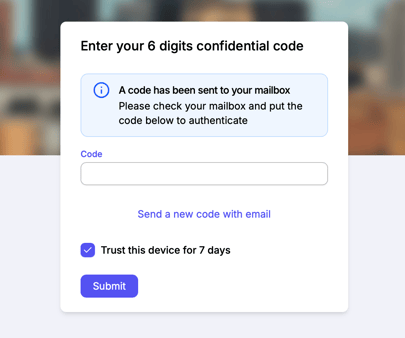
If this applies to you, after entering your password you will be asked to enter a 6-digit security code sent automatically to your login email address.
-
Code validity
- The code is valid for 15 minutes.
- You can request a new code at any time by clicking "Send a new code by email".
-
When entering your code, a "Trust this device for 7 days" checkbox is shown, it is ticked by default.
-
- If left ticked, you will not be asked for a code again for 7 days, as long as you log in from the same device and browser.
- If you untick it, a code will be required every time you log in.
After 7 days, a new code will automatically be sent to your email at your next login.
If you do not receive the code, check your spam folder.
Forgotten password
Click "Forgot password" on the login screen. A reset link will be sent to your email address.
Regular password renewal
For security reasons, you will be prompted to reset your password every 90 days. This is mandatory and helps keep your account secure.
When resetting your password, whether via "Forgot password" or the mandatory 90-day reset, you cannot reuse a previously used password.
Too many incorrect login attempts
If you enter an incorrect password more than 3 times in a row, your account is temporarily suspended for 5 minutes.
- This is automatic and protects your account against unauthorised access.
- You can try again once the 5 minutes have passed, or click "Forgot password" to reset your password.
Multiple login methods
On some platforms, some users log in with standard authentication (email and password) while others use SSO. The login method depends on your organisation's setup.
Can't find the "Pro Access" button?
The "Pro Access" button is usually in the top right corner of the homepage. On some platforms, it may appear at the bottom of the page instead.
If your platform supports multiple login methods (password and SSO), two separate buttons may be displayed. Make sure you click the one that matches your login method (e.g. "Pro Access via SSO" / "Pro Access without SSO").